Knowing how to check a PDF for ADA compliance in 2026 is no longer optional for most businesses. Courts treat inaccessible PDFs the same way they treat inaccessible web pages. They are all documented barriers that create legal liability. The federal rules require that all online PDFs meet ADA accessibility standards, with enforcement beginning in April 2026. If your website hosts menus, forms, brochures, contracts, or any downloadable document, every one of those PDFs needs to be checked and, where needed, fixed.
This guide covers what ADA compliance actually means for PDFs, how to run a proper compliance check, what the most common failures look like, and how to fix them fast.
What Does ADA Compliance Mean for a PDF?
Most people think of ADA compliance as a website issue but PDFs are just as much in scope. The DOJ’s digital accessibility rules cover all digital materials, including PDFs, Word documents, and PowerPoint presentations, not just websites and apps.
In practice, an ADA-compliant PDF is one that can be read and navigated by people using assistive technology like screen readers. That means the document must have searchable text (scanned image PDFs don’t qualify), alt text on all images, and properly structured headings and reading order.
The technical benchmark is WCAG 2.1 Level AA, the same standard that governs websites. This applies to PDFs currently in use for services or programs, plus any new documents published after the compliance deadline
Three legal frameworks govern PDF accessibility in the US and beyond:
ADA Title III applies to businesses and organizations operating public-facing websites. Courts have consistently ruled that PDFs on those sites must be accessible to users with disabilities.
Section 508 of the Rehabilitation Act applies to federal agencies, organizations that receive federal funding, and service providers to such organizations. It mandates that PDFs conform to WCAG 2.0 at Level AA as a minimum.
The European Accessibility Act (EAA), which took effect on June 28, 2025, and requires all ecommerce services sold in the EU to meet WCAG 2.1 AA standards. This applies to any business selling to EU customers, regardless of where the business is based.
What standard does an ADA compliant PDF need to meet?
The technical benchmark most courts and regulators reference on how to check PDF for ADA compliance is WCAG 2.1 Level AA. Beyond WCAG, there is also PDF/UA (ISO 14289), an international standard specifically for universally accessible PDFs. A PDF that meets PDF/UA is generally considered to meet WCAG’s document-specific requirements. The best PDF ADA compliance checkers test against both.
The Most Common ADA Failures Found in PDFs
Before you run a compliance check, it helps to know what you are looking for. Frequent problems include missing or incorrect tags, improper reading order, unlabelled form fields, insufficient color contrast, missing alt text, inaccessible tables, and scanned images without OCR.
Common PDF Accessibility Problems Explained
Missing or Incorrect Tags
When learning how to check PDF for ADA compliance, tags are a big deal. Tags are like invisible labels that tell screen readers how a document is organized. They identify things such as headings, paragraphs, lists, and tables. Without these tags, a screen reader cannot understand the structure of the document, making the PDF extremely difficult or even impossible for blind users to read them. This is one of the most serious accessibility problems.
Incorrect Reading Order
A PDF may look perfectly arranged to someone viewing it on screen, but screen readers do not read content based on how it looks. They read it according to the document’s internal structure. If that structure is wrong, a screen reader might read a sidebar before the main content, jump between sections unexpectedly, or present information in a confusing sequence. This makes the document difficult to follow and understand.
Missing Alternative Text for Images
Images such as charts, diagrams, photos, icons, and logos need text descriptions called alt text. These descriptions allow people who cannot see the image to understand its purpose or meaning. Automated tools can check whether alt text exists, but they cannot judge whether the description is accurate or helpful. Making sure the description properly explains the image often requires human review.
Unlabelled Form Fields
Interactive PDFs often contain fields for entering information, such as names, dates, email addresses, or signatures. Each field needs a clear label that can be announced by a screen reader. Without these labels, users relying on assistive technology may hear only “edit box” without knowing what information they are expected to provide.
Scanned PDFs Without OCR
Many scanned PDFs are simply pictures of pages. While sighted users can read the text shown in those images, screen readers cannot. Optical Character Recognition (OCR) converts the text inside an image into real, readable text. Without OCR, a scanned PDF is essentially unreadable for blind users and cannot be searched, copied, or properly accessed.
Missing Document Language Settings
A PDF should specify the language it is written in, such as English, French, or Spanish. Screen readers use this information to choose the correct pronunciation and speech rules. If the language is not defined, words may be pronounced incorrectly, making the document harder to understand.
Inaccessible Tables
Tables must be structured correctly so screen readers can identify column headings and connect them to the appropriate data cells. When tables are not properly tagged, users may hear a stream of numbers and text with no indication of which information belongs together. A table that appears clear visually can become confusing and almost impossible to navigate with assistive technology.
How to Check a PDF for ADA Compliance
Step 1: Run an automated PDF ADA compliance check
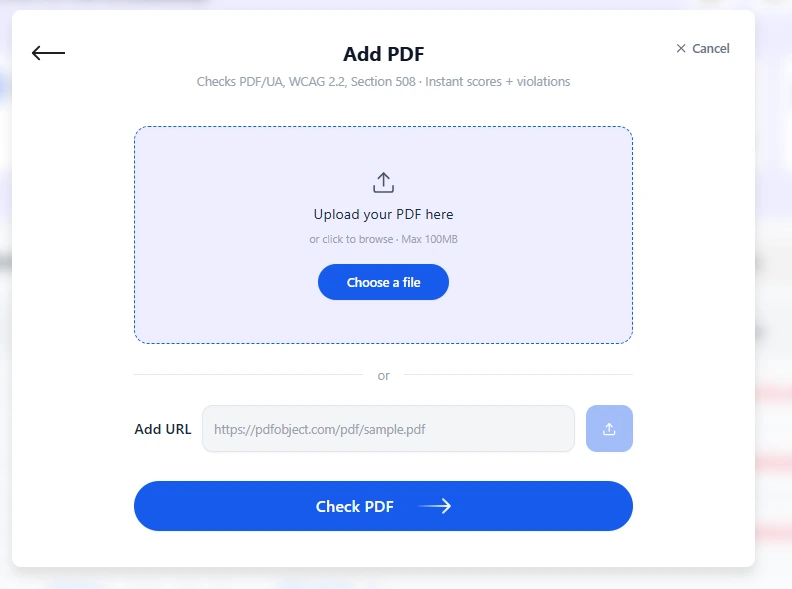
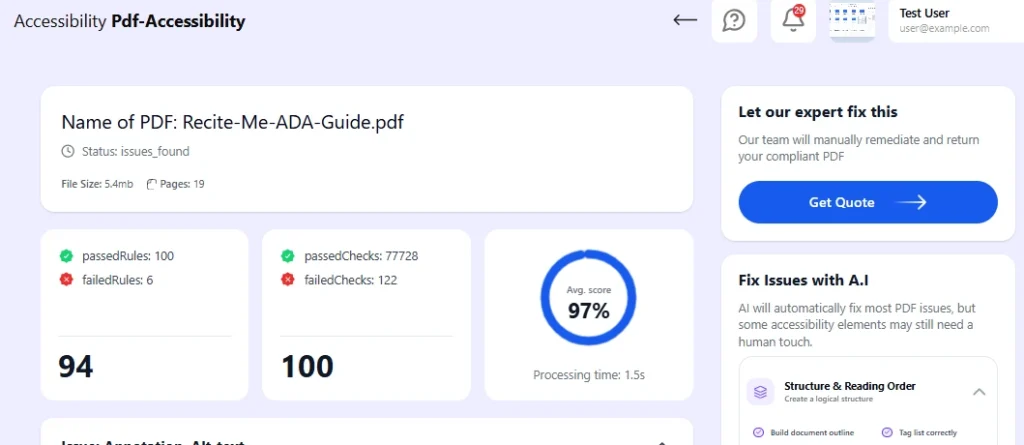
The fastest starting point is an automated PDF ADA compliance checker. Upload your PDF or paste the URL to the document, and the tool scans it against WCAG and PDF/UA requirements. You get a report showing which criteria pass, which fail, and where the failures are located in the document.
ADAcertify lets you do this directly from your dashboard. Upload the PDF file or paste the URL to a PDF hosted on your site, and the scanner returns both a pass/fail result per criterion and a detailed breakdown of every specific failure.
Automated tools catch between 30 and 40% of real accessibility barriers, which is enough to identify the most serious structural problems. Human review is required for the rest.
Step 2: Review the Compliance Report
A good PDF ADA compliance checker generates a report organized by standard WCAG success criteria and PDF/UA requirements. Work through the report in priority order. Failures related to tagging and reading order are the most serious because they make the entire document unusable. Failures related to alt text and color contrast are also high priority.
ADAcertify’s report covers WCAG 2.1 AA, PDF/UA (ISO 14289), and Section 508, giving you documentation that covers all three frameworks in a single scan.
Step 3: Run a Manual Review for What Automation Misses
After the automated scan, open the PDF with a screen reader (NVDA on Windows is free, VoiceOver is built into Mac and iOS) and navigate it as a blind user would. Listen for:
- Does the reading order make sense?
- Are images described meaningfully, or does the screen reader just say “image”?
- Can you navigate and complete any form fields?
- Do tables make sense when read row by row?
Automated checkers cannot determine if alt text is appropriate for the image and its placement, if color contrast failures exist within images, or if the logical reading order matches the visual presentation. Those checks need human eyes and ears.
Step 4: Document Your Findings
Save the compliance report. Whether you are checking PDFs for a government contract, a procurement submission, or simply building a record of good-faith compliance effort, the report is your documentation. ADAcertify generates reports that cover WCAG 2.1 AA, Section 508, and PDF/UA so you have a single document ready for any context.
What a PDF ADA Compliance Checker Actually Looks For
What does a PDF accessibility checker test? A solid PDF ADA compliance checker runs tests across these categories:
Check | What It Tests |
| Document tags | Are all content elements tagged? Are tags in the correct reading order? |
| Alt text | Do meaningful images have descriptive alt text? |
| Document language | Is the PDF’s language declared in the metadata? |
| Document title | Is there a meaningful title in the document properties? |
| Form fields | Are all fillable fields labelled? |
| Color contrast | Does text meet the 4.5:1 minimum contrast ratio? |
| Table structure | Are table headers tagged and associated with data cells? |
| Bookmarks | Do long documents have bookmarks for navigation? |
| Font embedding | Are fonts embedded so the document displays correctly on all devices? |
| OCR layer | Does scanned content have a text layer screen readers can read? |
One important caveat to note is that automated tools only catch 30 to 40% of real accessibility barriers. A checker that returns all green does not guarantee full compliance. It means no automated issues were detected. A human-verified audit is required for a defensible compliance position.
How to Fix a PDF That Fails the ADA Compliance Check
Option 1: AI-assisted Remediation (fast, works for most PDFs)
Once your compliance check flags issues, the fastest path to a fixed PDF is AI-assisted remediation. ADAcertify’s platform lets you start fixing flagged issues immediately using AI, directly from your dashboard. This takes minutes for most documents and covers the structural and tagging issues that automated tools can identify and correct programmatically.
ADAcertify’s basic plan covers up to 50 PDFs and 100 pages, which handles most small business document libraries: a menu, a service brochure, a return policy, and a terms of service document.
Option 2: Human Expert Remediation (Recommended for Thorough Audit of Complex PDFs)
For PDFs with complex layouts, scanned content, intricate tables, multi-column structures, or form fields, AI remediation will not be enough. ADAcertify offers human expert remediation that you can request directly from your dashboard. A certified accessibility specialist reviews the document, fixes issues the AI cannot handle reliably (alt text quality, reading order in complex layouts, form field labeling), and delivers a fully remediated PDF.
Turnaround time depends on the document’s complexity. Simple documents are typically returned within 48 hours. Complex, multi-page documents with tables, forms, or scanned content take longer. ADAcertify provides a custom quote based on your specific documents.
Option 3: Rebuild the Source Document
For a PDF that is structurally broken at its foundation, starting fresh is sometimes faster than fixing the existing file. Create the document in Microsoft Word using proper heading styles, meaningful image alt text, and accessible table formatting. Then export to PDF using the “Save as PDF” option with the “Document structure tags for accessibility” checkbox enabled. Run it through the PDF ADA compliance checker again before publishing.
How ADAcertify Handles PDF Compliance Checking and Remediation
ADAcertify brings PDF ADA compliance checking and remediation into the same dashboard you use to manage your website’s accessibility. Here is how it works in practice:
Check your PDFs two ways. Upload a PDF file directly to your ADAcertify dashboard, or paste the URL to a PDF already hosted on your site. The scanner runs immediately and returns a detailed compliance report covering WCAG 2.1 AA, PDF/UA, and Section 508.
Start Fixing with AI in Minutes. Once issues are flagged, you can begin AI-assisted remediation directly from the dashboard. For most standard business documents, this resolves the structural and tagging issues automatically without waiting for a manual review.
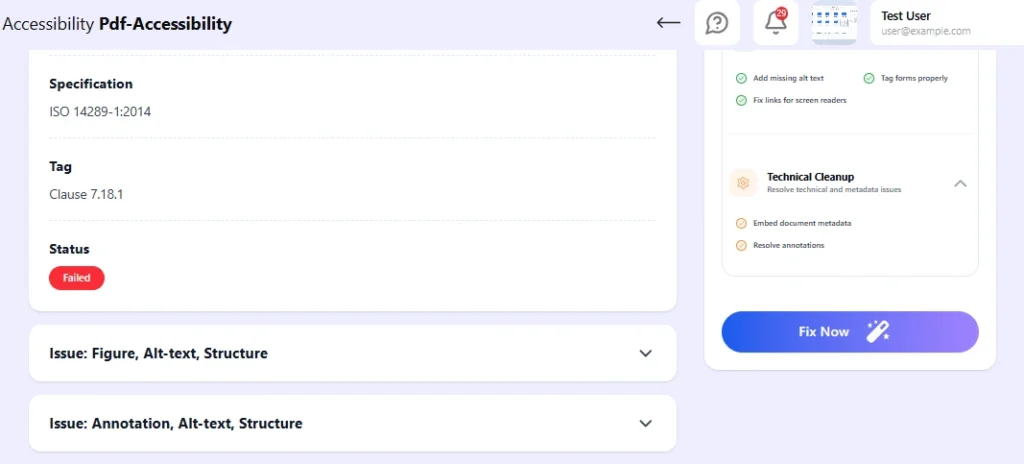
Request Expert Remediation for Complex Documents. For PDFs that need human judgment, scanned documents, complex tables, multi-form structures, or anything where the AI alone is not sufficient, you can request human expert remediation from the same dashboard. ADAcertify provides a custom quote and handles the document from there.
Basic Plan Covers up to 50 PDFs and 100 pages. For businesses with a standard set of documents, that covers your full library in one go.
The compliance report covers all three frameworks. One report, usable for ADA, Section 508, and PDF/UA purposes. Whether you need it for a government contract, a procurement submission, or a legal situation, the documentation is ready.
Check your PDFs for ADA compliance with ADAcertify.
Summary: How to Check PDF for ADA Compliance
Checking a PDF for ADA compliance comes down to four steps: run an automated PDF ADA compliance checker to surface structural failures, review the detailed report by standard laws, run a manual screen reader test for what automation misses, and document your results. When issues are found, you can fix them with AI remediation for speed, or human expert remediation for complex documents that need careful review.
The legal stakes are real. PDFs on your website carry the same compliance obligations as your web pages, and courts are not treating them as an afterthought. Getting your documents checked and remediated now costs a fraction of what a demand letter settlement will.
Start your ADAcertify free trial and run your first PDF compliance check today.
Frequently Asked Questions About PDF ADA Compliance
Is a scanned PDF ADA compliant?
No. A scanned PDF is an image. Screen readers cannot interpret images as text. For a scanned PDF to be accessible, it needs OCR (optical character recognition) applied to create a text layer, followed by proper tagging and structural remediation. ADAcertify’s human expert remediation handles scanned PDFs as part of its service.
Does passing the Acrobat accessibility checker mean my PDF is ADA compliant?
Not fully. Simply passing the ADA full check in Acrobat is not enough to ensure compliance. There are many ADA concerns that require a human to evaluate, including whether alt text is appropriate, whether color contrast within images is sufficient, and whether the logical reading order matches the visual presentation. Acrobat’s checker is a useful first pass, not a compliance certification.
How long does PDF ADA remediation take?
It depends on the approach and the document. AI-assisted remediation in ADAcertify takes minutes for straightforward documents. Human expert remediation typically takes up to 48 hours for standard documents, with a longer turnaround for complex PDFs containing intricate tables, forms, or scanned content.
Do Word documents and PowerPoint files need to be ADA compliant too?
Yes, if they are published online. WCAG applies to any digital document accessible to the public, not just PDFs. However, ADAcertify’s compliance checker and remediation service currently covers PDFs specifically.
What is the difference between WCAG and PDF/UA for PDF compliance?
WCAG (Web Content Accessibility Guidelines) is the broader web accessibility standard. PDF/UA (ISO 14289) is a more specific standard developed for PDFs. A PDF that meets PDF/UA is generally considered to satisfy WCAG’s document-related requirements. ADAcertify checks against both, plus Section 508, so the compliance report covers all three frameworks.
Can I get sued for having an inaccessible PDF on my website?
Yes. Courts treat PDFs posted on websites as part of the digital experience covered under ADA Title III. A restaurant with an inaccessible menu PDF, a law firm with an inaccessible intake form, or a business with an inaccessible contract has documented legal exposure. The existence of the PDF on your site, combined with its inaccessibility, is enough to form the basis of a complaint.