If you run a Shopify store, you’re already thinking about traffic, conversions, and revenue. But there’s a question most merchants aren’t asking, and it’s costing them both customers and legal safety: How to make your Shopify store ADA & WCAG compliant?
Accessibility isn’t a niche checkbox. According to this report, the community of people living with disabilities controls an estimated $13 trillion in annual global spending power. Yet the majority of Shopify stores still lock these shoppers out through barriers as simple as missing image descriptions or buttons that can’t be navigated by keyboard.
At the same time, Shopify has become the single most-used e-commerce platform for ADA violations, representing 32.42% of all platform-specific accessibility lawsuits tracked in 2025 (WCAGsafe, 2026). Over 5,000 digital accessibility cases were filed that year alone — a 37% year-over-year increase.
This guide walks you through exactly what Shopify accessibility compliance means, why it matters urgently in 2026, and the practical steps you can take — with or without a developer — to protect your business and open your store to every shopper.
Why Shopify Store Accessibility Matters More Than Ever in 2026
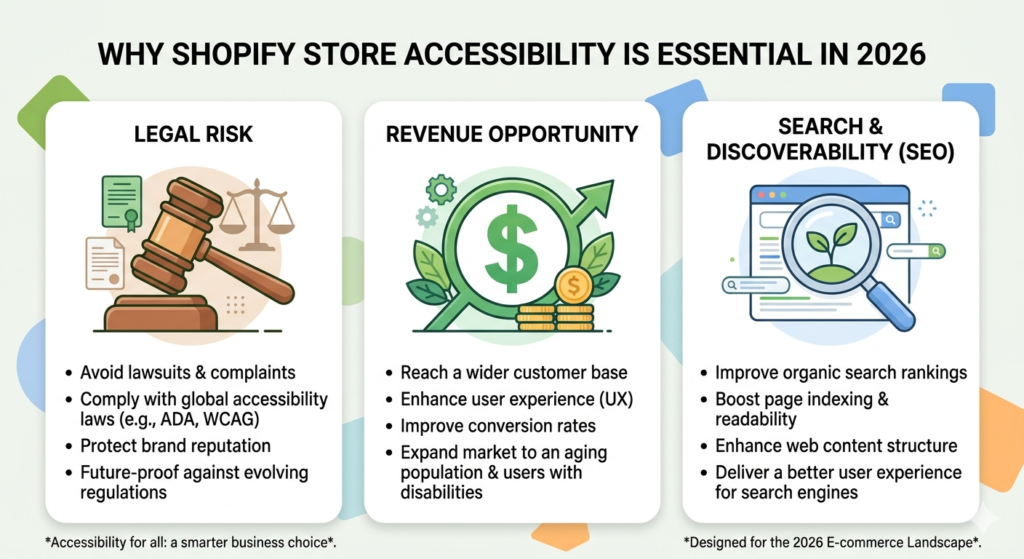
There are three hard reasons every Shopify merchant needs to act on accessibility in 2026.
1. ADA Lawsuits Are Rising and Shopify Stores Are a Prime Target
ADA lawsuits are becoming increasingly common, and the costs can be significant. According to TestParty’s 2025 ADA Lawsuit Trends data, demand letters often start at $5,000, while settlements typically range from $25,000 to $75,000 once legal fees and remediation costs are included. E-commerce and retail websites account for the majority of digital accessibility lawsuits.
Shopify merchants face an even higher level of scrutiny. WCAGsafe’s 2026 Shopify compliance analysis found that Shopify stores made up 32.42% of all platform-specific ADA cases in 2025, with 77% of those lawsuits involving small and mid-sized businesses.
Perhaps most importantly, being sued once does not reduce future risk. Nearly half of the defendants sued in 2025 had already faced previous accessibility lawsuits. The most effective way to protect your business is fixing the underlying code.
2. Accessibility Unlocks a Massive Revenue Opportunity Most Stores Ignore.

Over 1.3 billion people worldwide live with a disability. Together with their families and caregivers, they represent an estimated $13 trillion in annual spending power, according to research by the Valuable 500 in partnership with Yale University. In the US alone, working-age adults with disabilities control roughly $490 billion in disposable income.
Yet most online stores still fail to serve this market. According to the 2025 eCommerce Accessibility Study, only 11% of cart and checkout pages meet minimum WCAG standards. That means many businesses are unintentionally creating barriers that drive potential customers away.
3. Accessibility Improvements Also Deliver Meaningful SEO Gains
Accessibility and SEO go hand in hand. Features that make your store easier for people to use also help search engines understand your site better. Adding alt text to images, using proper heading structure, writing descriptive links, and maintaining clean code can improve search visibility and overall site performance. In many cases, accessibility improvements double as SEO improvements.
Key Statistics at a Glance
| 5,000+ | Federal digital accessibility lawsuits filed in 2025, up 37% year-over-year (WCAGsafe) |
| 32.42% | Share of platform-specific ADA lawsuits targeting Shopify stores in 2025 |
| 69–77% | Percentage of all digital accessibility lawsuits that target e-commerce sites |
| $13T | Estimated annual global spending power of the disability community |
| 77% | ADA defendants in 2025 that were small businesses (revenue under $25M) |
| 22.6% | Sites sued in H1 2025 that already had an accessibility overlay installed, proving widgets alone aren’t enough |
What WCAG Compliance Actually Means for Your Shopify Store
WCAG stands for Web Content Accessibility Guidelines. The Department of Justice (DOJ) references WCAG 2.1 Level AA as the standard for ADA compliance. It’s built around four principles, often called POUR:
- Perceivable: Content must be available to all senses. Screen readers must be able to read product descriptions, image alt text, and form labels.
- Operable: All functionality must work via keyboard, not just a mouse. This includes cart drawers, dropdown menus, and checkout flows.
- Understandable: Text must be readable and page behaviour predictable. Forms must have clear error messages and labels.
- Robust: Your site must work with assistive technologies like screen readers (NVDA, VoiceOver, TalkBack) and voice input software.
Shopify’s newer themes provide a reasonable starting point. But custom content, uploaded product images, third-party apps, and promotional banners can all introduce violations that the platform doesn’t catch automatically. WCAG compliance is your responsibility as the store owner — not Shopify’s.
Step 1: Audit Your Shopify Store for Accessibility Issues
Before fixing anything, you need to know what’s broken. Start with a free automated scan to establish a baseline.
Free Audit Tools You can Try
ADAcertify Free Scan.
The fastest way to see where your site stands. Head to getadacertify.com, enter your store’s URL in the scan field on the homepage, and hit scan — no account or setup required. The tool crawls your pages to identify accessibility barriers affecting users with disabilities and generates a detailed report showing common ADA violations with specific code locations and suggested fixes, so you know exactly what needs to be addressed. It’s a great starting point if you want a clear, actionable picture of your compliance gaps before investing in a full solution.
Google Lighthouse
This tool is built directly into the Chrome browser, so there’s nothing to install. Open your Shopify store in Chrome, right-click anywhere on the page, select “Inspect,” then click the “Lighthouse” tab. Hit “Analyze page load” and it will run a full audit of that page in seconds. You’ll get an accessibility score out of 100, along with a list of specific issues — each one explained in plain English with guidance on why it matters and how to fix it. Run it on at least your homepage, a product page, and your checkout to get a well-rounded picture.
WAVE by WebAIM
WAVE is a browser extension (available for Chrome and Firefox) that gives you a visual layer over your live store pages. Once installed, clicking the WAVE icon while on any page overlays color-coded icons directly on top of your content — red icons flag errors like missing image alt text, yellow icons flag warnings like low color contrast, and other markers highlight form labeling issues and structural problems. Because everything is shown in context on the actual page, it’s easy to pinpoint exactly where each issue lives without digging into code.
axe DevTools
Also a browser extension, axe DevTools is widely trusted by developers and QA teams for its thoroughness. After installing it, access it through Chrome DevTools (right-click → Inspect → “axe DevTools” tab) and run a scan on any page. It checks against a broad range of WCAG criteria and returns a categorized list of violations — each tagged by severity and WCAG success criterion — making it especially useful if you’re working with a developer to prioritize and fix issues systematically.
Important Caveat: Automated tools catch roughly 30–50% of WCAG violations. The remainder require manual review, especially around keyboard navigation, screen reader behavior, and the usability of dynamic elements like cart drawers and modals.
Manual Checks Worth Doing Right Now
- Open your store in a browser. Press Tab repeatedly. Every interactive element — links, buttons, dropdowns, form fields — should show a visible focus indicator. Test the full purchase journey using only your keyboard.
- Enter incorrect data in your forms. Are the error messages clear? Do they explain how to fix the problem, not just flag that something went wrong?
- Zoom your browser to 200%. Does your layout survive without text overlapping or disappearing?
- Watch a product video with the sound off. Do captions appear? Can users who can’t hear the audio still understand the content?
Step 2: Add Descriptive Alt Text to All Product Images
Missing or poor alt text is one of the most common accessibility violations on Shopify stores, and one of the easiest to fix. Alt text is a written description that screen readers announce to users who can’t see images. Every product image, banner, and icon needs it.
How to Add Alt Text in Shopify
1. Go to your Shopify Admin and open a product.
2. Click on a product image. The alt text field appears on the right.
3. Write a clear, concise description. Avoid ‘image of’ or ‘photo of.’ Just describe what’s there: “Navy blue canvas backpack with padded straps, front view.”
For stores with hundreds of products, apps like Variant Alt Text Optimizer can automate this across your catalogue, especially useful for variant-specific photos (e.g., the same jacket in five colours).
Step 3: Fix Keyboard Navigation Across Your Store
Many people with motor disabilities navigate entirely by keyboard, using Tab to move through a page and Enter to activate links and buttons. A checkout flow that requires a mouse click anywhere in the funnel creates a complete barrier.
Common Keyboard Navigation Problems on Shopify
- Dropdown menus that can’t be used with a keyboard
- Popups and newsletter forms that trap users and won’t close with the Escape key
- Cart drawers that can’t be opened or navigated without a mouse
- Search bars that keyboard users can’t reach
- “Quick View” popups without an accessible close button
A simple test is to go through your entire checkout process using only the Tab, Enter, and Escape keys. If you need a mouse at any point, you likely have a WCAG issue and a potential ADA risk.
Step 4: Fix Color Contrast for Text and Interactive Elements
Low colour contrast makes text hard or impossible to read for users with low vision or colour blindness. WCAG 2.1 AA requires:
• A contrast ratio of at least 4.5:1 for normal body text
• A contrast ratio of at least 3:1 for large text (18pt+) and UI components such as buttons and input borders
Gray text on white backgrounds, light-colored buttons with white text, and watermarked promotional banners are common offenders. Use the WebAIM Contrast Checker (free) to test any colour combination. If your Shopify theme fails, adjust your theme settings or edit the CSS directly.
Step 5: Label All Forms Correctly
All forms on your site—contact, newsletter, search, and checkout—need proper HTML labels, not just placeholder text. WCAG requires labels to be clearly connected to their input fields in the code.
Placeholder text like “Enter your email” disappears when users start typing and may not be read correctly by screen readers. Every input field should have a real, permanent label so users always know what information is required. This is especially important in Shopify themes and third-party app forms, where labeling is often missing or incorrect.
Step 6: Use a Proper Heading Structure
Headings (H1, H2, H3) are not just for design; they help users and screen readers understand and navigate your page.
- Use one H1 per page (usually the main title or product name)
- Use H2 for main sections
- Use H3 for subsections under H2
- Don’t skip levels or use headings just for styling
Check your product pages, collection pages, and blog posts carefully. Many Shopify themes and apps break heading order, which makes pages harder to navigate and less accessible.
Step 7: Choose the Right Accessibility App: Widgets vs. Deep Fixes
Once you’ve addressed core structural issues, the right accessibility app adds ongoing monitoring, automated fixes, and user-facing controls. However, not all solutions are equal. Understanding the difference matters for both compliance and legal protection.
⚠️ Overlay Warning: What They Don’t Fix
Accessibility overlay widgets add on-screen controls like font size and contrast adjustments. While they can improve usability, they do not fix underlying accessibility issues in your site’s code.
In the first half of 2025, 22.6% of ADA lawsuits involved websites that already had an accessibility widget installed. This shows that overlays do not protect against legal risk.
In fact, in 2025 the FTC fined a major overlay provider $1 million for misleading claims that its product guaranteed ADA compliance.
Real protection comes from fixing accessibility at the code level, supported by continuous monitoring and expert audits, not just surface-level tools.
Here are the top tools and apps worth considering for your Shopify store:
1. ADAcertify
ADAcertify is an all-in-one accessibility compliance platform built for website owners, developers, and agencies. Its hybrid approach combines AI-driven automation with human expert audits, covering what automated tools miss.
Key features include AI-powered widget with 70+ customizable accessibility features, real-time monitoring that automatically flags new issues as your store changes, deep code-level insights and expert reviews for complex barriers, one-click VPAT generation for compliance documentation, bulk alt text automation across thousands of product image and so on. It also has a 7-day free trial with no credit card required
ADAcertify covers ADA, WCAG 2.1 & 2.2, Section 508, AODA, and the European Accessibility Act (EAA), making it a strong choice for merchants selling globally. Start your free scan here.
2. AudioEye
AudioEye integrates with Shopify and applies automated fixes while offering expert audits performed by accessibility specialists and members of the disability community. Continuous monitoring helps maintain compliance as your site evolves
3. accessiBe
accessiBe provides an AI-powered widget (accessWidget) that automatically addresses some WCAG issues. However, it has faced regulatory scrutiny over compliance claims, so it should be used as part of a broader accessibility strategy—not as a complete solution on its own.
4. UserWay
UserWay offers an accessibility widget and scanning tools that are easy to add to Shopify stores. Like other overlay-based tools, it works best when combined with proper code-level accessibility fixes.
5. Accessibly
Accessibly adds an accessibility toolbar to Shopify stores with features like font resizing, color adjustments, grayscale mode, and some ARIA improvements. It mainly improves user experience rather than fully fixing underlying code issues.
6. All-in-One Accessibility
This tool provides a wide range of front-end accessibility controls, including text-to-speech, visual adjustments, and keyboard navigation support. It is useful for improving usability, especially for multilingual audiences.
Regardless of which app you choose, treat it as a supplement to structural code fixes, not a replacement for it. The only thing that truly reduces ADA lawsuit risk is getting your underlying HTML, ARIA and keyboard behavior right.
How to Implement Accessibility Across Your Shopify Store: A Step-by-Step Workflow
Accessibility is not a one-time project. Every product upload, app installation, and theme update is an opportunity to accidentally introduce new violations. Here’s a sustainable workflow to keep your store compliant as it grows.
Step 1: Run an Initial Accessibility Scan
Use Google Lighthouse, WAVE, or a dedicated platform like ADAcertify to scan your homepage, product pages, collection pages, and checkout. This gives you a violation baseline and a prioritized list of what to fix first.
Step 2: Fix Structural Issues First
Before deploying any app, address the core barriers identified in your scan: missing alt text, broken heading hierarchy, unlabeled form fields, keyboard navigation failures, and low color contrast. These are the issues most likely to appear in an ADA demand letter.
Step 3: Deploy Your Accessibility App
Install your chosen accessibility app (starting with ADAcertify if you want an all-in-one solution) and configure it. Check that it doesn’t conflict with your theme or other apps, and verify that its widget doesn’t interfere with keyboard navigation or screen reader behavior.
Step 4: Test with Assistive Technology
Navigate your store using only a keyboard. Then use a free screen reader — VoiceOver (Mac/iOS), NVDA (Windows), or TalkBack (Android) — to experience your pages as a blind or visually impaired shopper would. Can you find and add products to the cart? Can you complete the checkout? If possible, involve people with disabilities in user testing.
Step 5: Publish Your Accessibility Statement
Create a page in your Shopify Admin called “Accessibility” or “Accessibility Statement.” Include: your target standard (WCAG 2.1 AA), what steps you’ve taken, and a contact method for users to report accessibility barriers or request accessible content. This demonstrates good faith and provides documented evidence of your compliance efforts.
Step 6: Monitor and Rescan Regularly
Schedule monthly rescans. Set up monitoring through your accessibility platform to catch new violations introduced by theme updates, app installations, or new product content. Platforms like ADAcertify can automate much of this in the background.
Step 7: Maintain Compliance Documentation
Keep records of all scans, fixes, updates, and testing. This documentation is your defence if your accessibility is ever challenged. It shows that accessibility is an ongoing practice, not a one-off checkbox.
Common Shopify Accessibility Mistakes That Can Lead to Lawsuits
Most ADA demand letters against Shopify stores come from the same avoidable issues:
- Relying on color alone to show meaning (e.g., a red “Out of Stock” label without text or an icon)
- Auto-playing video or audio without user control
- Missing a “Skip to Main Content” link for keyboard and screen reader users
- Using images of text instead of real, selectable HTML text
- Hover-only menus or tooltips that don’t work with a keyboard or touch devices
- Unclear or broken links like “click here” or links that don’t go anywhere
- Accessibility problems introduced by third-party Shopify apps (such as popups, sliders, or review widgets)
These issues are common in Shopify themes and apps, but they can create serious accessibility and legal risks if not fixed.
How Long It Takes to Make a Shopify Store Accessible
The timeline depends on your store’s size, theme, and how many apps you use.
- Small store with a standard theme: Most major issues can be fixed in a few hours using basic theme updates, free tools, and an accessibility tool like ADAcertify.
- Mid-size store with custom theme: Expect a few days to a couple of weeks of developer work, plus ongoing monitoring.
- Large store with custom components and many apps: This can take several weeks and usually requires a full accessibility audit and a structured maintenance plan.
Take the Next Step: Build Accessibility Into Your Store
Accessibility is not a one-time task — it’s an ongoing standard. Every product update, app install, or theme change can improve or break it.
The best approach combines code-level fixes, continuous monitoring, expert audits, and user-facing tools. ADAcertify brings these elements together in one platform, helping merchants move beyond quick fixes toward long-term compliance and usability.
Run a free accessibility scan of your Shopify store using ADAcertify
Frequently Asked Questions
Is Shopify ADA compliant by default?
No. Shopify provides some built-in accessibility features in its themes, but that covers only part of what WCAG 2.1 AA requires. Custom content, uploaded images, third-party apps, and your specific store configuration all affect compliance.
What’s the first thing I should fix?
Start with alt text on all product images and run a free audit using WAVE or Google Lighthouse. These steps are low effort and high impact — and alt text violations are among the most commonly cited in ADA demand letters.
Will installing an accessibility widget make me fully ADA compliant?
No. Overlay widgets are not a substitute for code-level fixes. In H1 2025, 22.6% of all ADA lawsuits named sites that already had a widget installed. Courts do not accept the presence of an overlay as evidence of good faith compliance. Use widgets as a usability supplement on top of a properly remediated store.
How often should I rescan my site?
At minimum, once a month and after any significant change — new theme, new app installation, major product uploads, or promotional campaign launch. Better yet, use a platform like ADAcertify that monitors continuously.
Does accessibility improve my Shopify store’s SEO?
Yes, significantly. Alt text improves image search visibility. Proper heading structure improves crawlability. Descriptive link text reduces bounce. Fast, clean semantic HTML improves Core Web Vitals. Accessibility and SEO are complementary, not competing, priorities.
Do I need a developer to make my Shopify store accessible?
Not for everything. Most basic fixes — adding alt text, checking forms, improving heading structure — can be done directly from your Shopify Admin. Complex issues like broken keyboard navigation in custom JavaScript components, or fixing third-party app ARIA errors, will likely need developer support.
What is an Accessibility Statement and do I need one?
An Accessibility Statement is a page on your site that explains your commitment to accessibility, your target standard, the steps you’ve taken, and how users can report barriers. It demonstrates good faith and is increasingly expected by regulators and users. Create it as a standard page in your Shopify Admin.