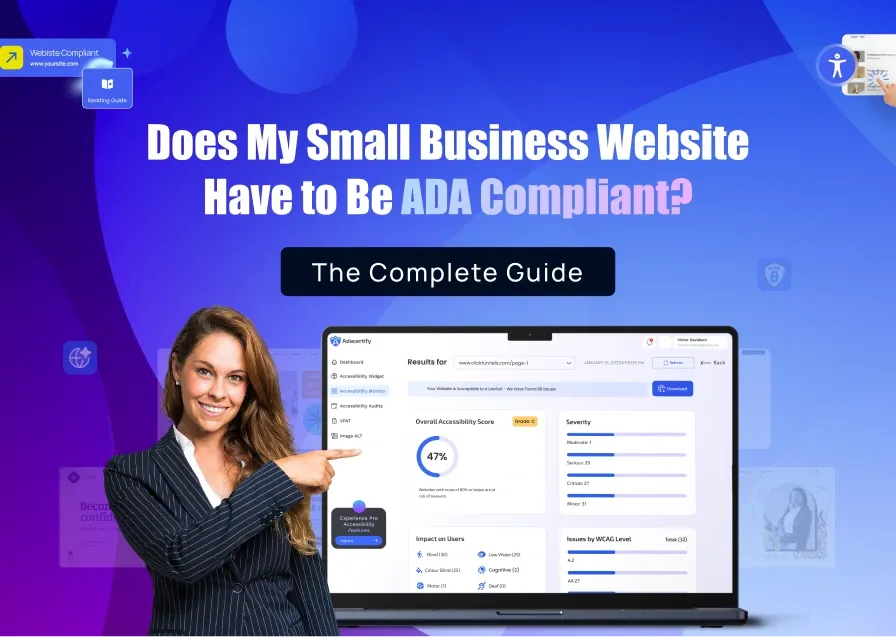
This Shopify ADA compliance checklist covers the 14 specific issues that cause most accessibility lawsuits against eCommerce stores. Shopify stores account for 32% of all ADA web accessibility lawsuits filed in 2025. Most of the violations that trigger those lawsuits are the same six problems appearing store after store. This checklist gives you the exact fixes, in priority order, so you can work through them systematically.
Start by Running a Scan on your Website
Do not attempt to fix your store blind. Run a full accessibility scan first so you know exactly which issues exist on your specific storefront, not just which issues are common in general. A free scan at ADAcertify maps every detectable violation across your pages and tells you which ones are the highest priority to fix.
Automated scans catch 30 to 40% of WCAG issues. That is enough to find the obvious violations and prioritize your first round of fixes. Then, an expert audit catches the rest.
Images and Media
Add Alt Text to Every Product Image
Alt text is the single most litigated accessibility issue on Shopify stores. A blind shopper using a screen reader cannot understand what a product looks like without it. Courts treat missing alt text as a clear, documentable barrier to purchase. Below is what you need to fix:
- Every product image needs a descriptive alt text (not just the filename or SKU)
- Collection page images need alt text
- Banner images and hero images need alt text unless they are purely decorative
- Decorative images (dividers, backgrounds, icons that have text labels nearby) should have empty alt text so screen readers skip them rather than reading out useless filenames
How to Write a Good Alt Text.
Think: “What would I tell a blind friend about this product?”
| Bad Alt Text | Good Alt Text |
| “product-shoe-123” | “Blue Nike men’s running shoe, side view |
| “shoe” | “Men’s blue running shoe, toe box close-up” |
How to fix it in Shopify: In your product admin, click the product image and add alt text in the field provided. For theme images, edit through the theme customizer or Liquid files.
ADAcertify’s AI alt text generator automatically generates WCAG-compliant alt text for your product images in bulk, which saves significant time on stores with large catalogs.
Add Captions to Videos
If your store uses product videos, brand videos, or tutorial content, any video with speech or meaningful audio needs closed captions. Shopify’s native video sections support external video embeds; ensure any YouTube or Vimeo video you embed has captions enabled.
Do Not Use Images as Text
Buttons, headers, or banners that are images of text (common in promotional banners) are a problem because screen readers cannot read text inside an image. Replace image-text with real HTML text styled to look like the design, or ensure the image has alt text that conveys the full text content.
Color and Visual Design
Check and Fix Color Contrast Ratios
Low contrast text is the most common WCAG failure, found on 79% of websites according to the 2026 WebAIM Million report. WCAG 2.1 AA requires:
- Regular text: minimum contrast ratio of 4.5:1 against background
- Large text (18pt or 14pt bold): minimum 3:1
- UI components and icons: minimum 3:1
Common problem areas on Shopify stores: gray text on white backgrounds, light-colored text on product image overlays, sale badges with insufficient contrast, and ghost buttons (outlined buttons with very light text).
Use a free contrast checker tool to test your specific color combinations before fixing.
Do Not Use Color Alone to Convey Information
If your store uses color to indicate something (green for in stock, red for sold out, a colored border for a selected variant), that information must also be conveyed in text. A shopper who cannot distinguish red from green needs a text label too.
Navigation and Keyboard Access
Make Sure Your Store Works with a Keyboard
Not every visitor uses a mouse. Some people rely entirely on a keyboard to browse websites, including people with mobility impairments and many screen reader users. For your Shopify store to be accessible, every action that can be completed with a mouse should also work with a keyboard.
A simple way to test this is to use the Tab key to move through links, buttons, forms, and other interactive elements, and use Enter or Space to activate them. If you cannot complete a task without using a mouse, some customers may not be able to use your store properly.
Common keyboard Accessibility Problems on Shopify Stores Include:
- Product options that only work with a mouse, such as color swatches or size selectors that cannot be selected using the keyboard.
- Mega menus that close too quickly, making it impossible for keyboard users to reach submenu links.
- Cart drawers that trap keyboard focus, preventing users from navigating back to the rest of the page.
- Quick-view popups that cannot be closed with the Escape key, forcing users to find another way out.
- Third-party app popups that lose focus when closed, causing users to restart their navigation from the beginning of the page.
Ensuring full keyboard navigation makes your store easier to use for everyone and helps prevent accessibility barriers that could stop customers from browsing or making a purchase.
Add a Skip-to-Content Link
A skip-to-content link helps keyboard users get directly to the main content of a page without having to move through every menu item first. This feature is especially important for people who navigate websites using only a keyboard or a screen reader.
Without a skip-to-content link, a user may need to press the Tab key dozens of times on every page just to reach the information they want. This can make browsing slow and frustrating.
Many Shopify themes, including Dawn, include a skip-to-content link by default. Check your theme to make sure it exists and that it becomes visible when a keyboard user tabs to it.
Make Focus Indicators Easy to See
When someone navigates your store with a keyboard, they need a clear visual indicator showing which element is currently selected. This is called a focus indicator or focus ring.
Every interactive element—including links, buttons, form fields, dropdowns, and menu items—should display a visible focus state when selected using the keyboard.
A common mistake in Shopify themes is removing the browser’s default focus ring to create a cleaner visual design. While this may look better aesthetically, it makes keyboard navigation much harder because users can no longer tell where they are on the page.
To avoid this problem:
- Ensure all links, buttons, and form fields display a visible focus state.
- Do not remove focus indicators unless you replace them with a custom alternative.
- Use focus styles that stand out clearly from the surrounding content.
- Test your store by pressing the Tab key and confirming that the currently selected element is always easy to identify.
Visible focus indicators make navigation easier, improve accessibility, and help all users interact with your store more confidently.
Forms and Checkout
Add Clear Labels to Every Form Field
Every form field on your Shopify store should have a clear, visible label that tells users what information is required. This includes contact forms, newsletter signup forms, search bars, checkout fields, and any forms added by third-party apps.
A common accessibility mistake is relying only on placeholder text inside an input field. Placeholder text is not a substitute for a proper label because it usually disappears when the user starts typing. Once it disappears, users may forget what information the field is asking for.
Visible labels help everyone use forms more easily, especially people with cognitive disabilities, screen reader users, and those who may be distracted while completing a form.
When reviewing your forms:
- Make sure every input field has a visible label positioned above or beside it.
- Do not rely solely on placeholder text to explain what a field is for.
- Ensure labels are correctly connected to their corresponding form fields so screen readers can identify them.
- Clearly indicate required fields where necessary.
- Provide helpful instructions when a field requires a specific format, such as phone numbers or email addresses.
Pay Special Attention to Third-Party Apps
Many Shopify stores use apps for popups, lead generation, surveys, bookings, or newsletter signups. These forms often look polished but may not include proper accessibility labels.
Review all forms added by third-party apps and confirm that:
- Every field has a visible label.
- Screen readers can identify the purpose of each field.
- Users can complete the form using only a keyboard.
- Error messages are clear and easy to understand.
Well-labeled forms reduce confusion, improve usability, and help ensure that all visitors can successfully interact with your store.
Add Clear Error Messages
When a form fails (wrong email format, required field left blank), the error message must:
- Clearly identify which field has the error
- Explain what went wrong
- Be announced to screen readers (not just visually styled in red)
Shopify’s native checkout handles this correctly. Custom forms added via apps often do not.
Content and Structure
Use a Logical Heading Structure
Screen reader users navigate pages by jumping between headings (H1, H2, H3). Your heading structure should reflect the actual hierarchy of your page content, not your design preferences.
Common Shopify mistakes:
- Using H3 or H4 for product section titles because they look smaller, while skipping H2
- Using heading tags purely for styling (making things bigger or bolder)
- Having multiple H1 tags on a page (there should only be one)
- Having no headings at all on collection pages
Write Meaningful Link Text
Links that say “click here,” “read more,” or “shop now” without context are inaccessible. Screen reader users can pull up a list of all links on a page to navigate; a list of 12 “shop now” links is meaningless. Write links that describe the destination: “Shop women’s running shoes” instead of “shop now.”
Documents and PDFs
Remediate all PDFs on your store
Size guides, lookbooks, return policies, product manuals, wholesale order forms, these are all common Shopify store documents. An inaccessible PDF is just as legally exposed as an inaccessible web page.
An accessible PDF needs:
- Proper reading order tags
- Alt text on all images within the PDF
- Proper heading structure within the document
- Actual selectable text (not a scanned image of text)
- A document title and language declaration
Legal Documentation
Publish an Accessibility Statement
An accessibility statement tells visitors what standard your store is working toward, how to report an issue, and who to contact for help. It is required in some jurisdictions and strongly recommended in all of them. Courts view the presence of an accessibility statement as evidence of good-faith compliance effort.
Your statement should include:
- The standard you are working toward (WCAG 2.1 AA)
- What has been done to improve accessibility
- Known limitations and your plan to address them
- Contact information for accessibility issues
- Date the statement was last updated
ADAcertify generates your accessibility statement and keeps it current.
Frequently Asked Questions About the Shopify ADA Compliance Checklist
How long does it take to make a Shopify store ADA compliant?
For a typical small Shopify store with a standard theme and a handful of apps, expect 2 to 4 weeks for an initial remediation pass. Larger stores with custom themes, many apps, and large product catalogs take longer. The goal is not perfection on day one; it is documented, ongoing effort. Courts look at the effort you made, not whether you reached 100% on the first pass.
Do I need a developer to fix Shopify ADA issues?
Some fixes (alt text, heading structure, link text, accessibility statement) you can do yourself in the Shopify admin with no code required. Others (keyboard navigation failures, ARIA attribute errors, focus indicator issues, app conflicts) require a developer or a managed service like ADAcertify’s expert audit and remediation.
How often do I need to update Shopify ADA compliance?
Ongoing. Every time Shopify updates your theme, you install or update an app, or you add new content, you can introduce new accessibility issues. Real-time monitoring is the only practical way to catch problems before they accumulate. Set a quarterly review at minimum.
What is the difference between WCAG 2.1 and WCAG 2.2 for Shopify stores?
WCAG 2.2 added nine new success criteria to 2.1. The most relevant for Shopify stores are focus appearance (more specific requirements for visible focus indicators), dragging movements (alternatives for any interaction that requires dragging, relevant for product image galleries), and target size minimum (touch targets must be at least 24×24 pixels). The DOJ’s 2024 Final Rule references WCAG 2.1 AA as the legal standard. Best practice in 2026 is to meet WCAG 2.2 AA.